
One of the best Android extensions is undoubtedly One UI from Samsung. It is famous for its rich range of options and features, but this takes its toll in the form of minor lag, slight delays when opening applications or unnecessary background activity. Fortunately, you can just look in the settings and turn off a few features that do not provide you with anything useful. Your phone Galaxy with their deactivation it literally comes to life.
System animations
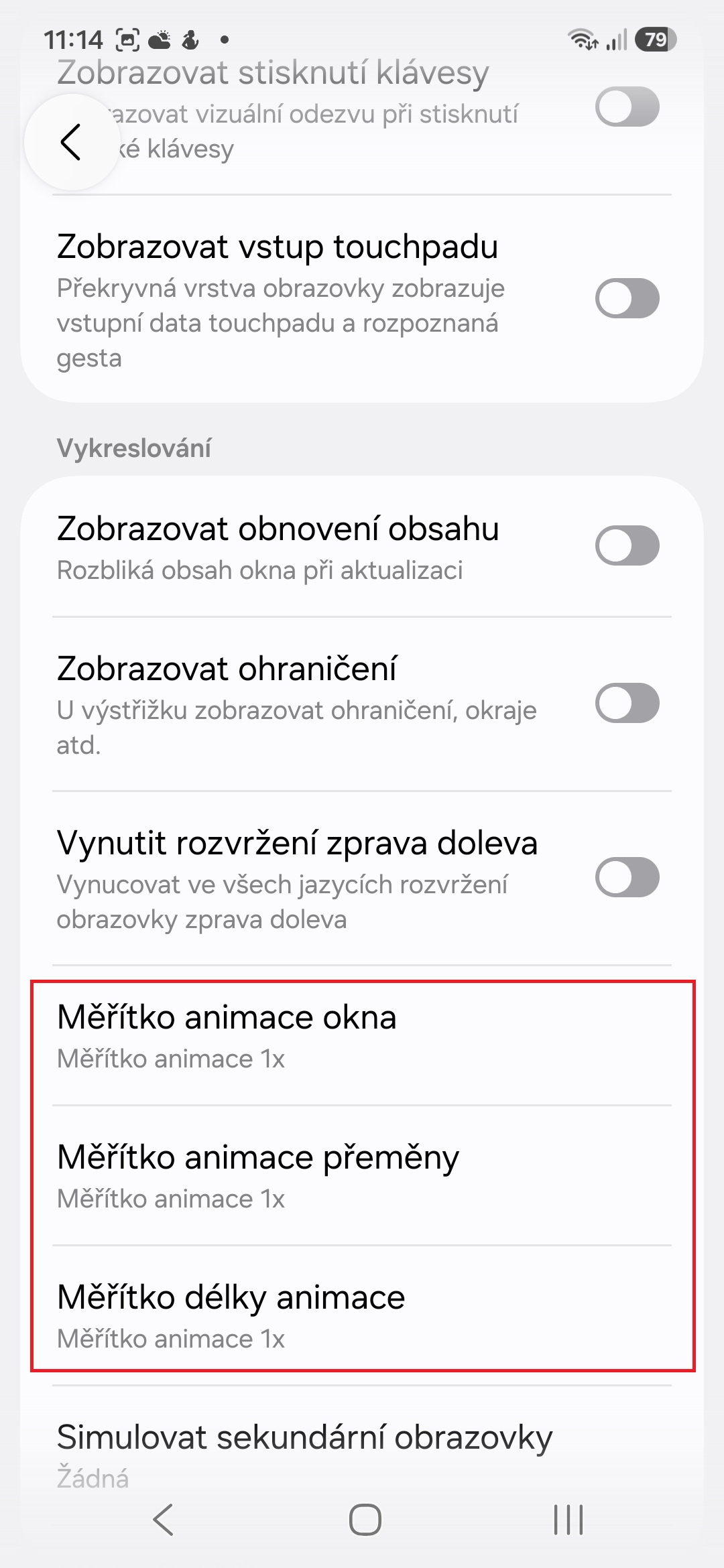
If you're looking for a single setting that will instantly and immediately transform the feel of using your phone, it's system animations. One UI uses smooth transition effects when opening apps, returning to the home screen, or switching between running windows. While they look nice visually, they come with a certain amount of lag. Even the most powerful model then feels like it's responding to your inputs a fraction of a second slower than it could. You can change this through a few items in developer mode.
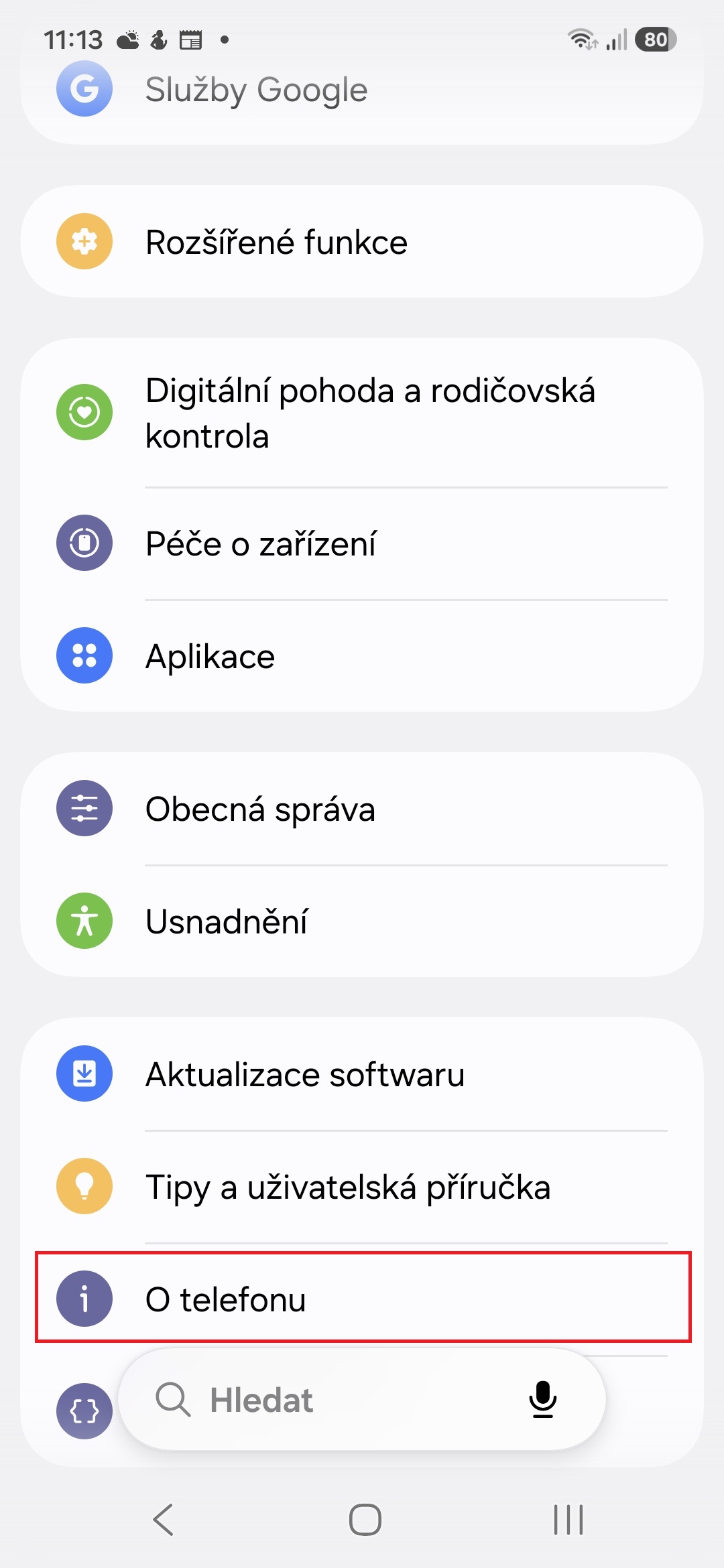
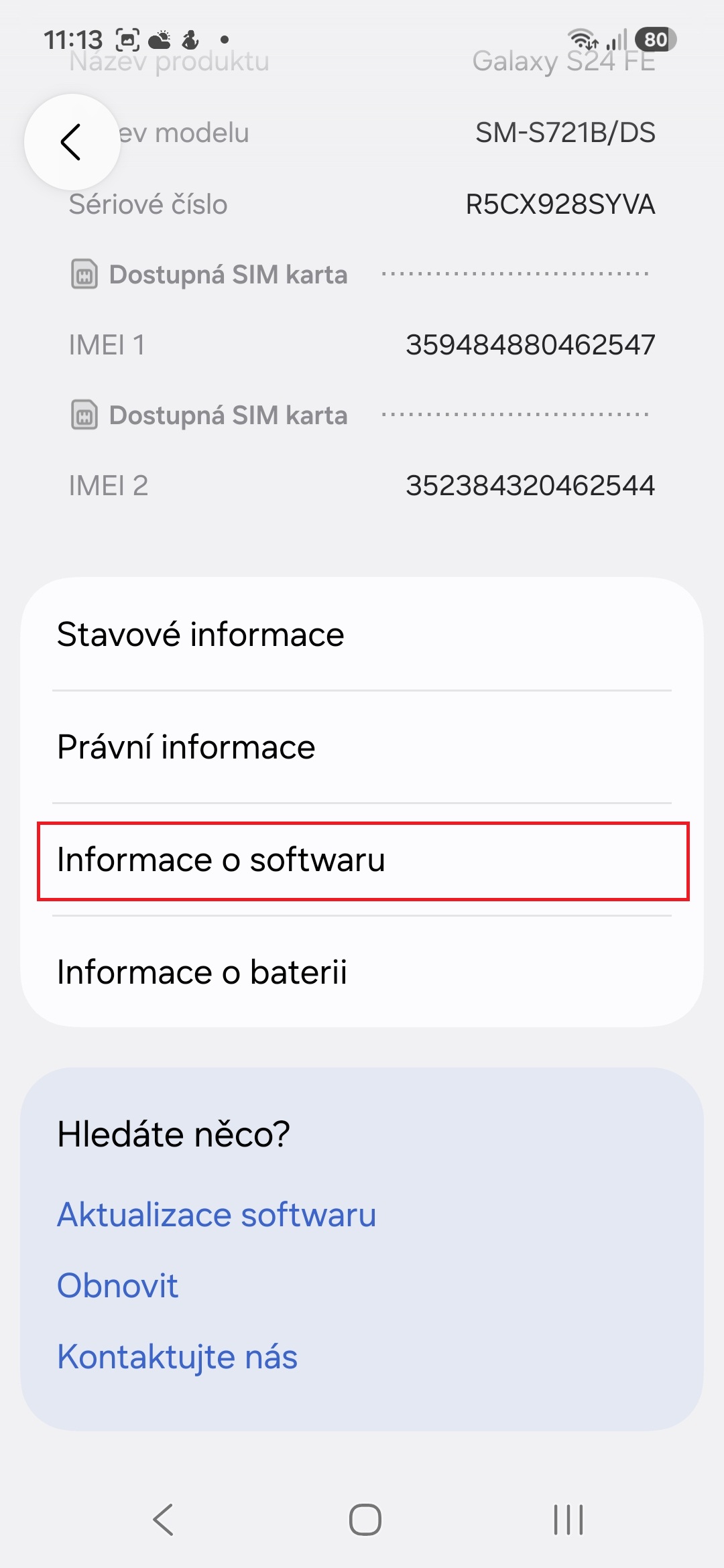
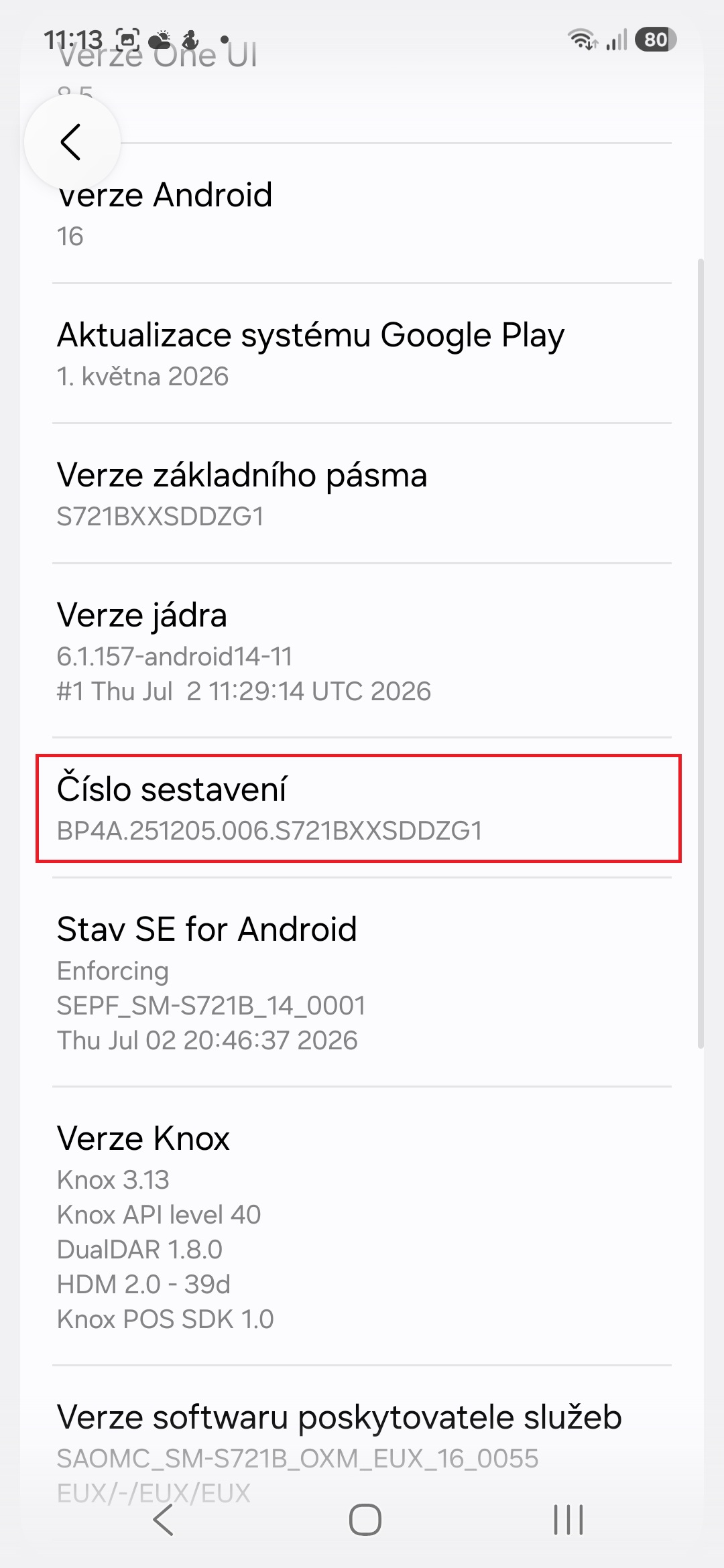
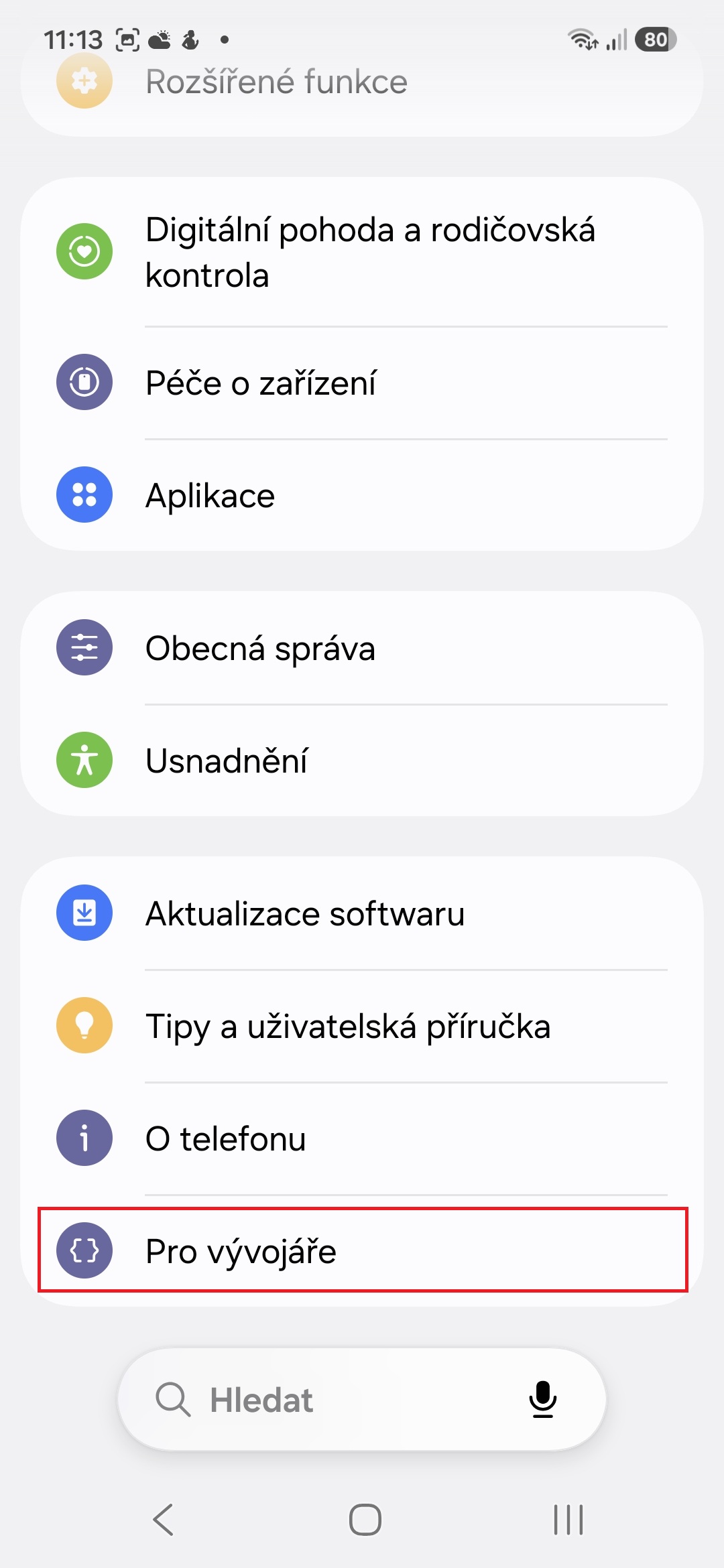
- Go to Settings→About phone→Software information and tap " seven timesThe build number". This will activate developer mode (officially the offer is called Pro developer).
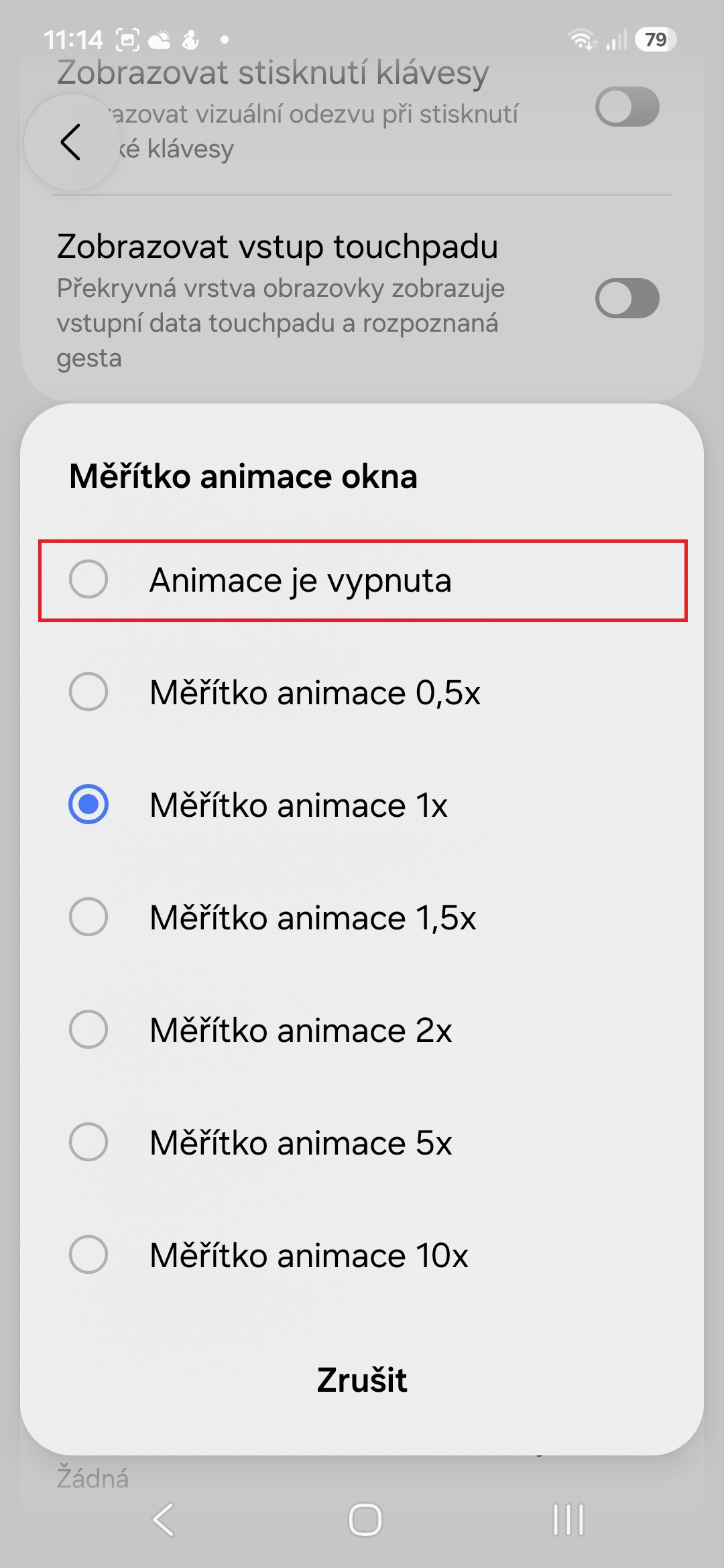
- Within the menu, search for items Window animation scale, The scale of the transformation animation a Animation length scale.
- Change their value from the default 1x to Off (or 0,5x if you want to keep at least minivisual fluency).
Gallery
Wi-Fi scanning and Bluetooth in the background
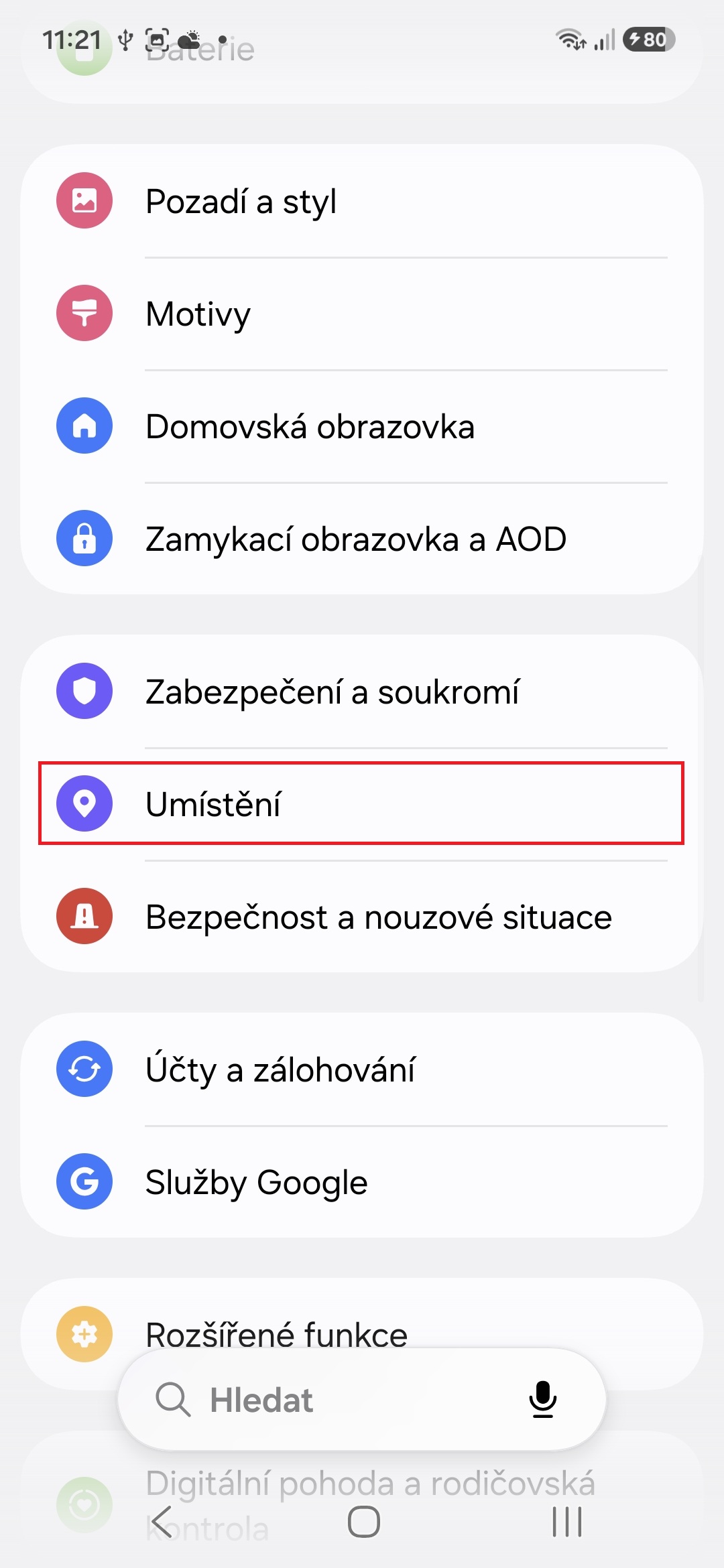
Many users believe that turning off Wi-Fi and Bluetooth in the quick panel spuprotection these wireless modules will be completely silent. For devices Galaxy (and Android in general) this is not the case. The system constantly scans for nearby Wi-Fi networks in the background and Bluetooth device to improve location accuracy. However, for most common situations, this constant searching is unnecessary and wastes system resources and battery.
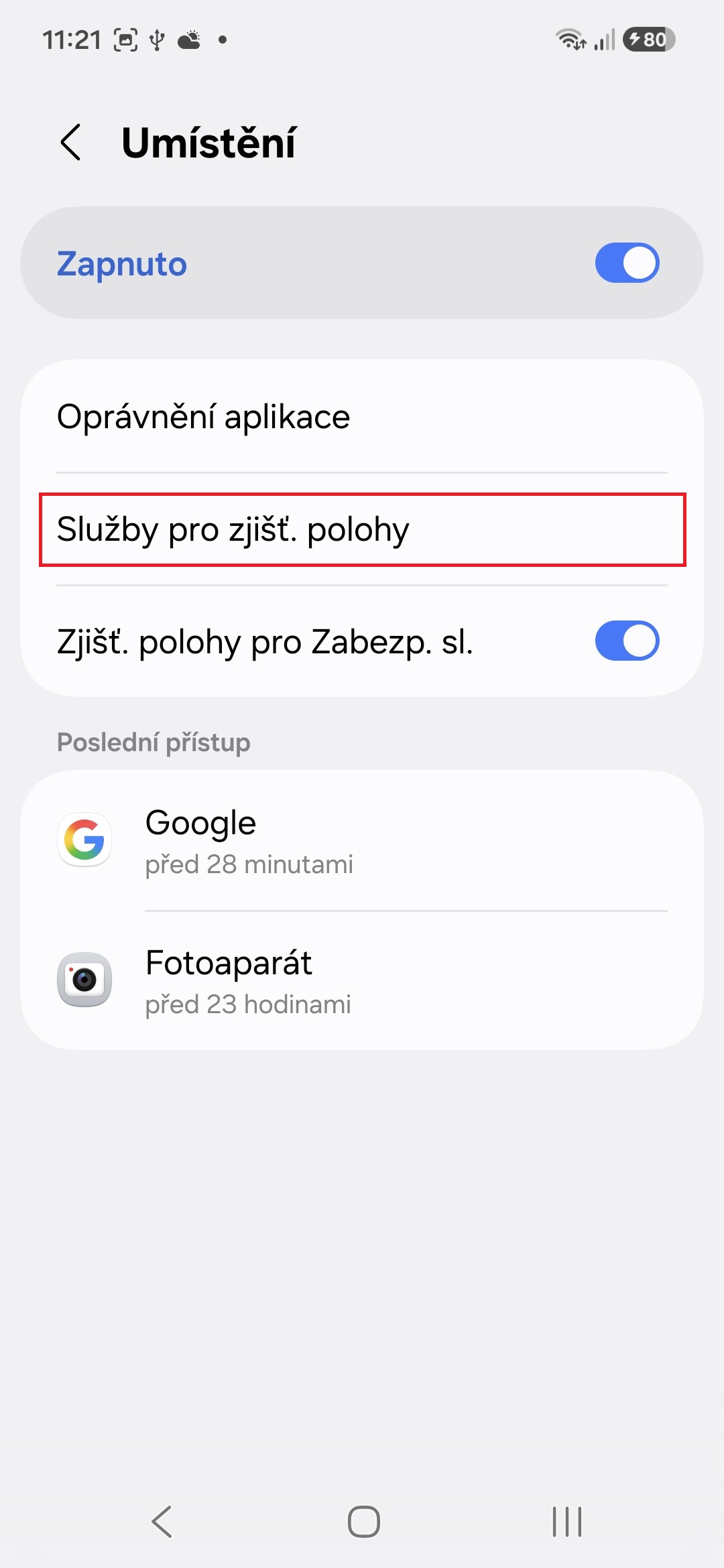
- Go to Settings→Location→Location Services.
- Turn off the switches Searching via Wi-Fi a Search Bluetooth.
Gallery
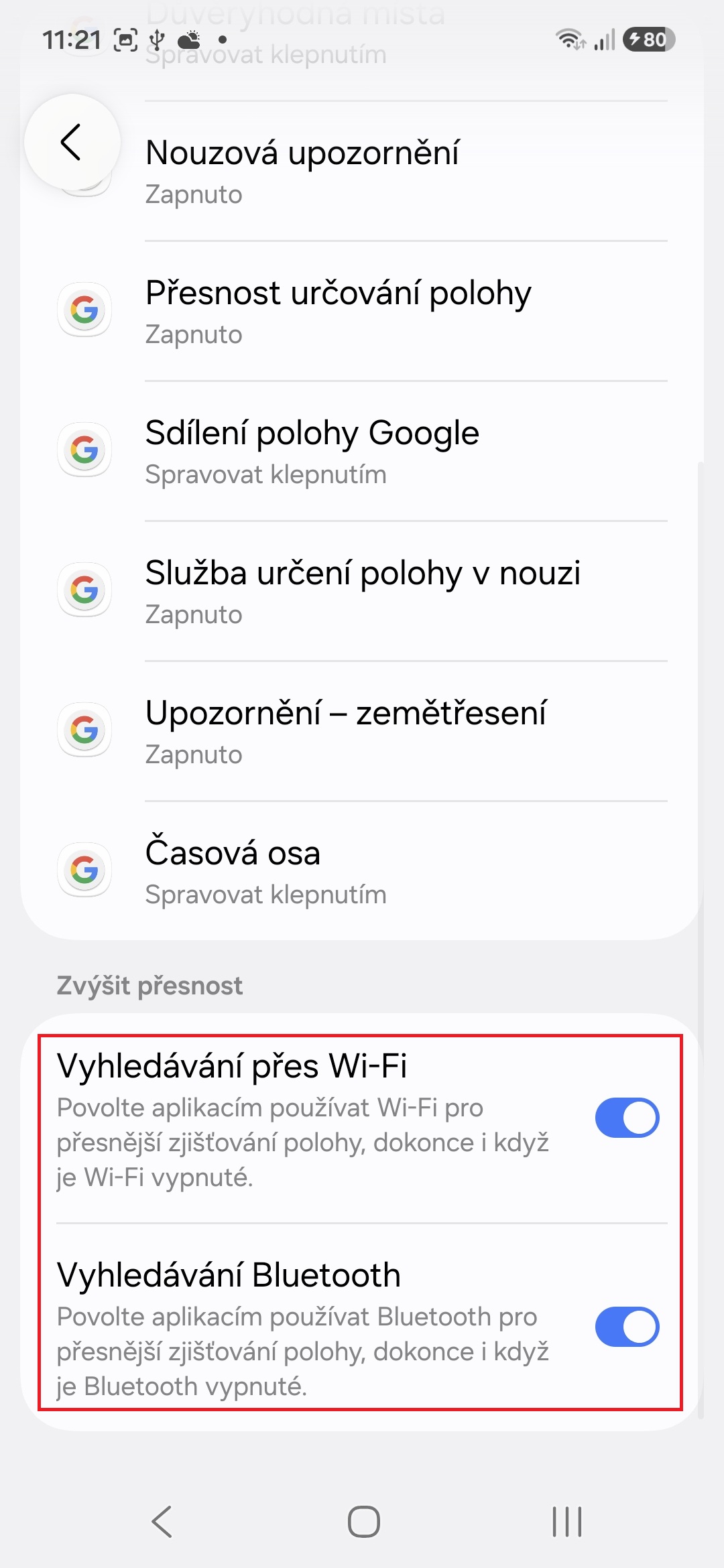
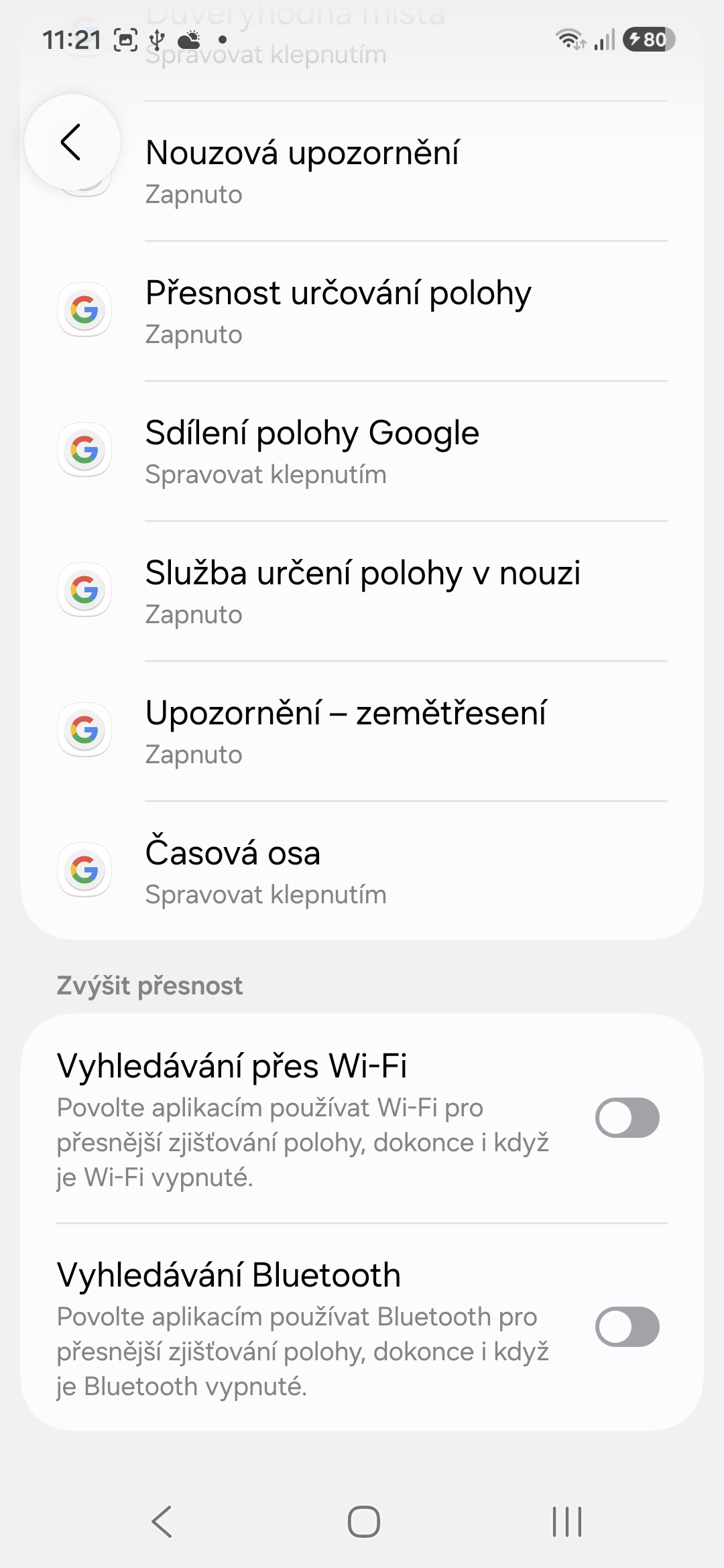
A companion step to reduce unnecessary background activity is to turn off automatic search for nearby devices (unless you are actively using constant pairing via Quick Share or SmartThings).
- V Settings→Connections→Additional connection settings turn off the switch Finding nearby facilities.
Customized service
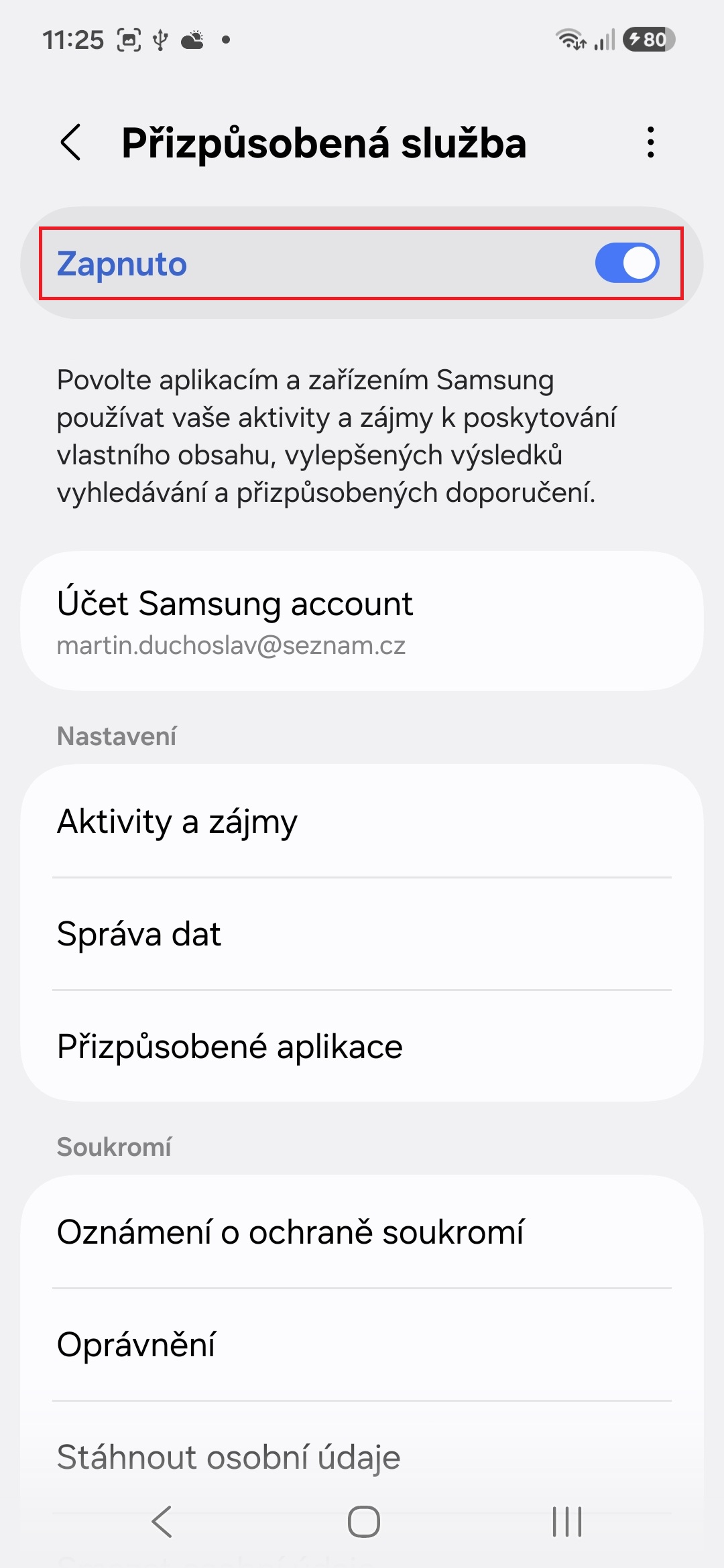
Samsung to interface One UI integrated the so-called Personalized Service, which collects data about your phone usage and Samsung account in the background to serve you personalized recommendations and targeted ads in the Korean giant's apps.
This is a classic example of a background process that serves the manufacturer rather than the user. Disabling this service alone won't make your phone go faster, but when combined with other tweaks, it helps reduce the overall system load and prevents unnecessary data collection.
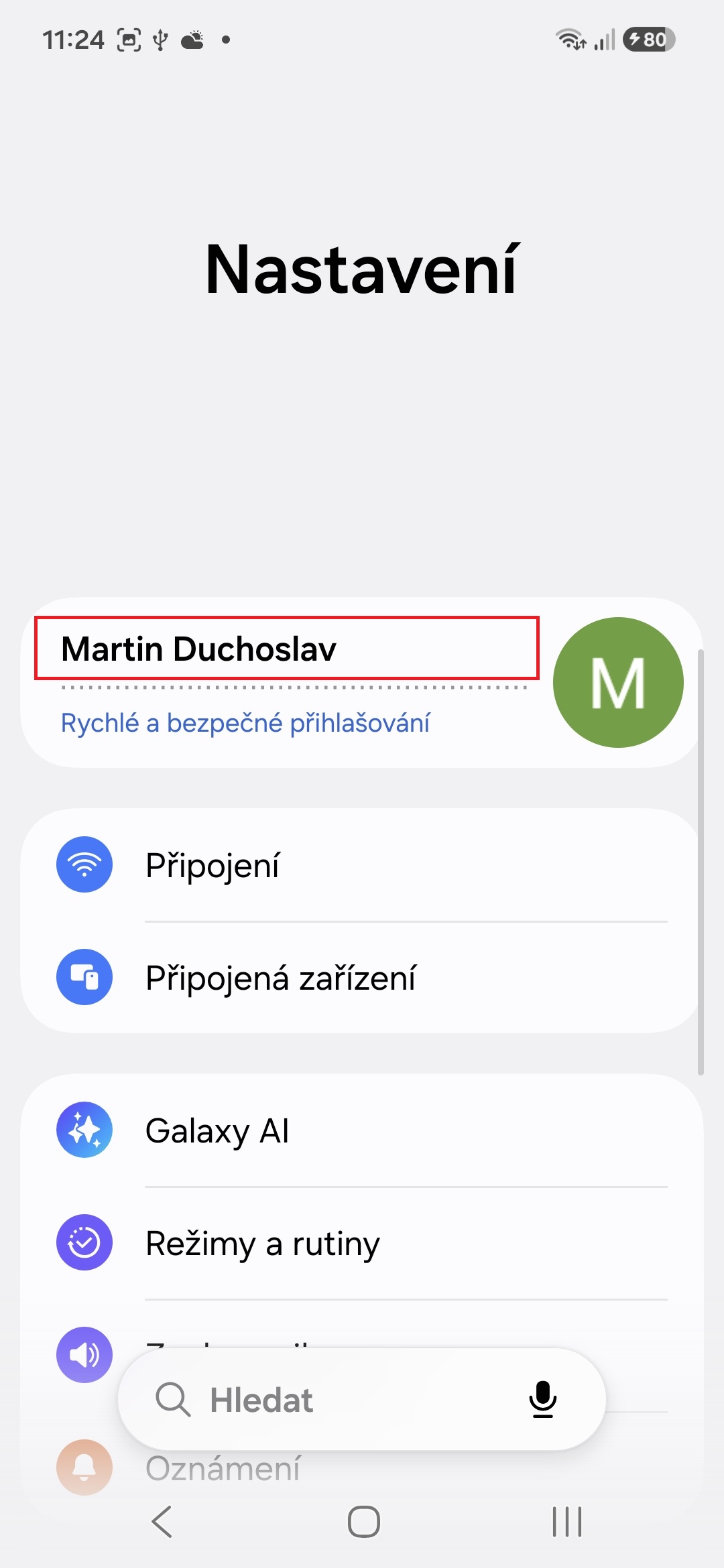
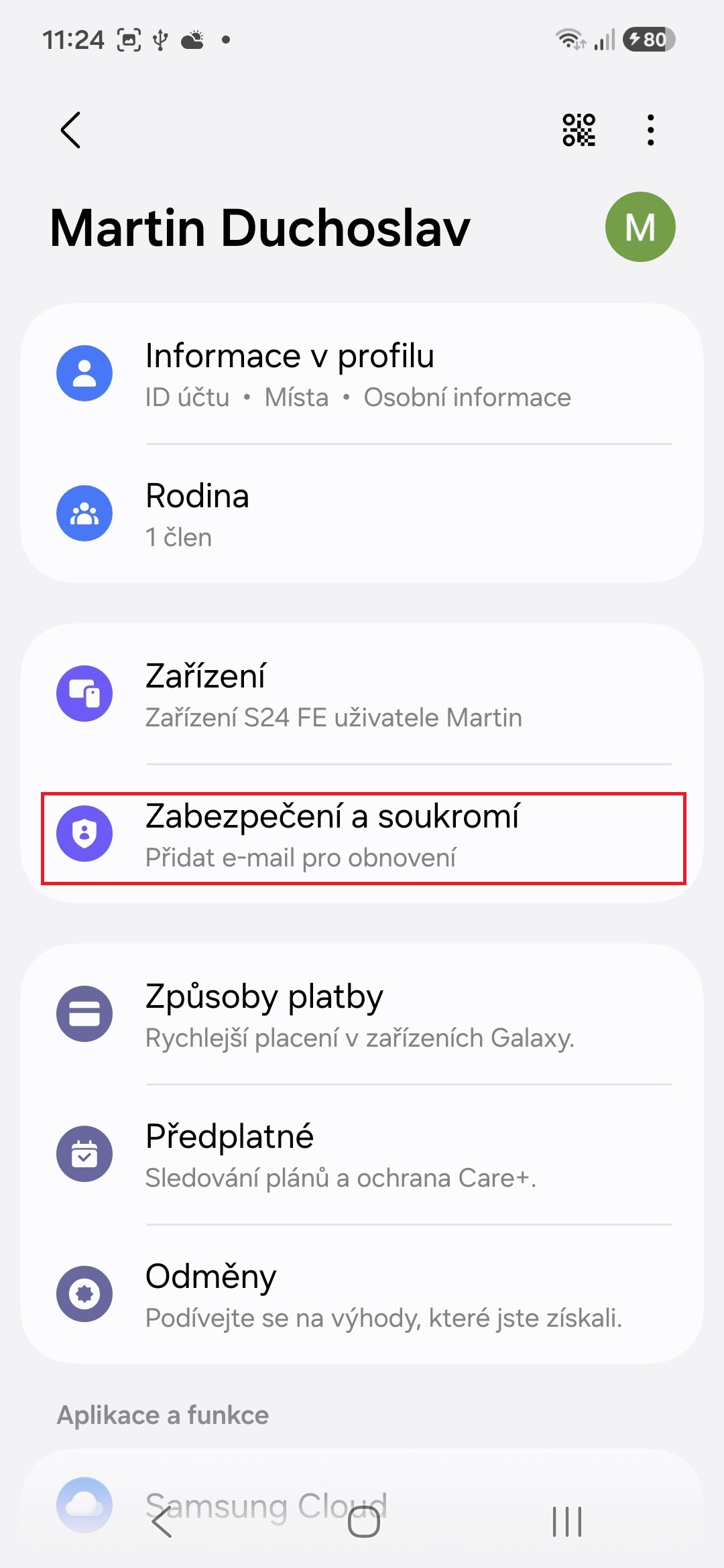
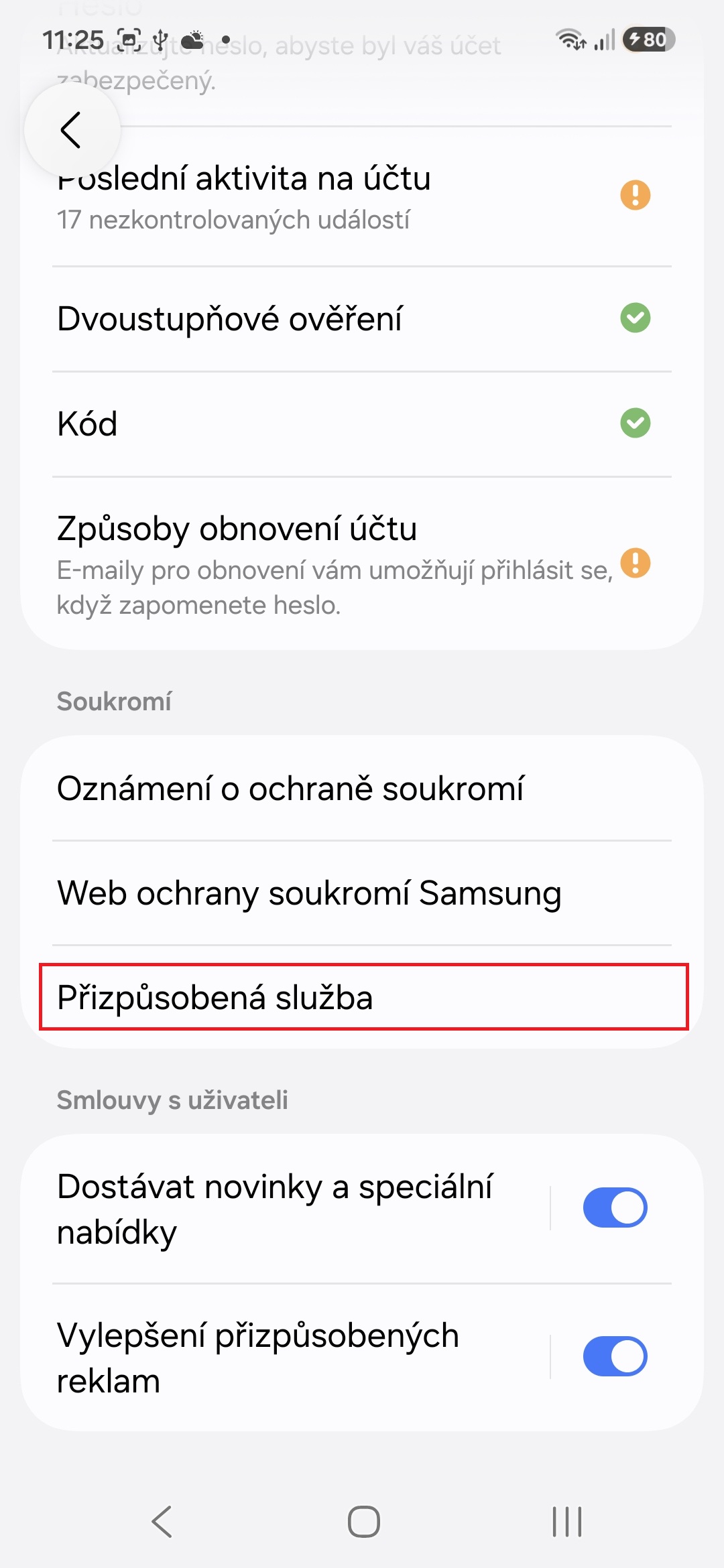
- Go to Settings and tap your name at the top.
- Click on the menu Security and Privacy.
- Click on the option Customized service.
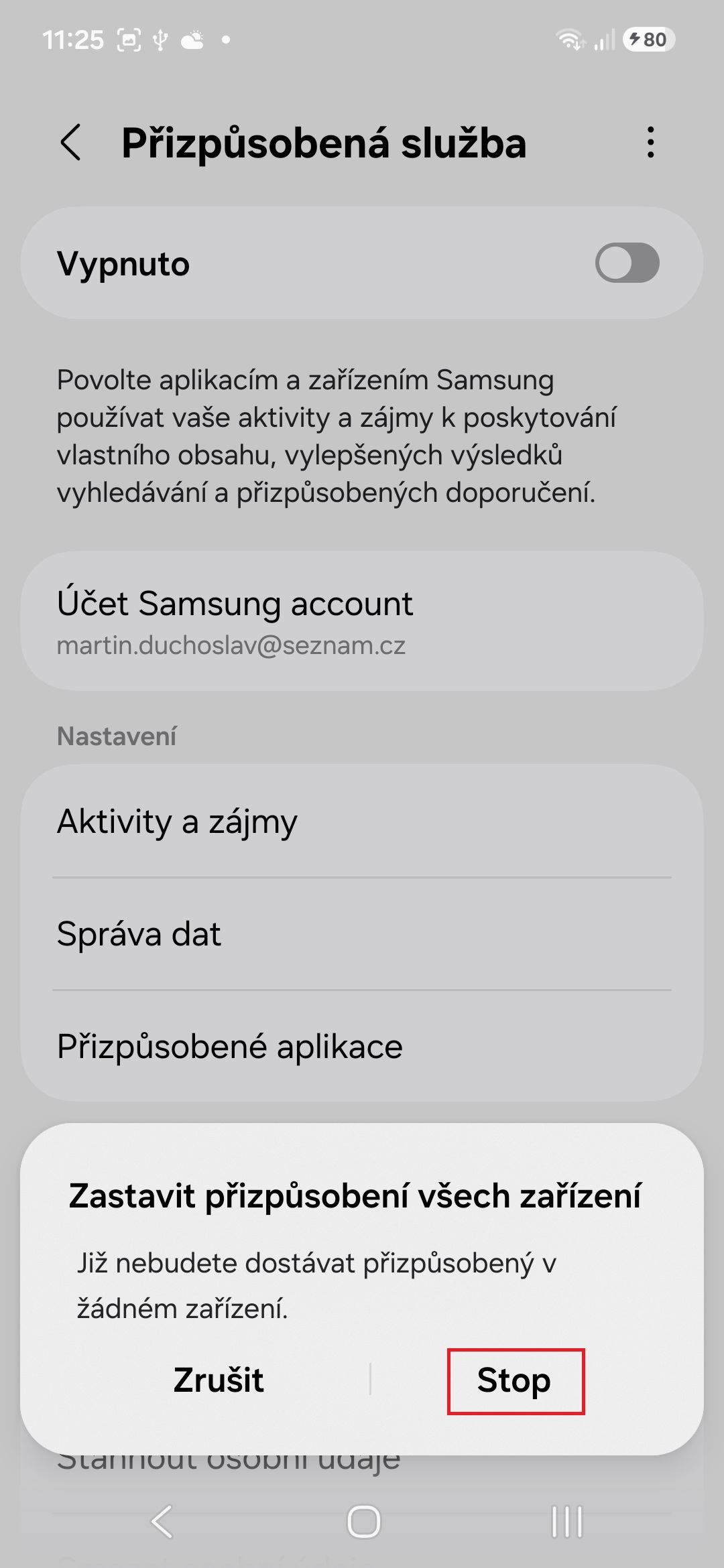
- Deactivate the corresponding switch.
- Tap to confirm "Stop".
Gallery






So those are the tips 👎🤦♀️🤦♀️ Mainly turning off WiFi and Bluetooth in the background, because this is how you can help another Samsung owner find/track their stolen device.
Stopping a service means that it will start again after a while. It would have to be deactivated, which is probably not possible.
Maybe remove/turn off the SIM card, and factory reset, and most importantly, don't overdo it and don't install anything.
Maybe remove/turn off the SIM card, and factory reset, and most importantly, don't overdo it and don't install anything.